The two whoops that I fly most often are an Air75 and a custom build based on the Air75 frame but running a HDZero AIO5. I recently updated to ELRS 4.0.0 and whilst the Air75 has a serial ELRS receiver making everything straightforward - the HDZero AIO5 has an SPI receiver.
That means the receiver cannot be updated directly, instead ELRS is bundled with Betaflight. Thankfully Ryan Quellet published a version of Betaflight for the HDZero AIO5 with the new version of ELRS included - with thanks for Karol for making the code changes. Ryan has made it available here. However, you should note this is setup for ELRS 4.0.0 ISM, not LBT. If you've got your regulatory domain set to LBT on your transmitter, this won't work for you.
Note: Ryan very clearly stated: "The ELRS 4.0 betaflight firmware I have shared is prototype, not supported, and might not ever be official."
That said, the first thing you want to do is connect to your flight controller using the Betaflight Configurator - you can access it here: https://app.betaflight.com/. In order to do that, you'll need to connect using a USB micro cable, and you'll need the right drivers. If you don't have the drivers installed, check out tools like ImpulseRC Driver Fixer.
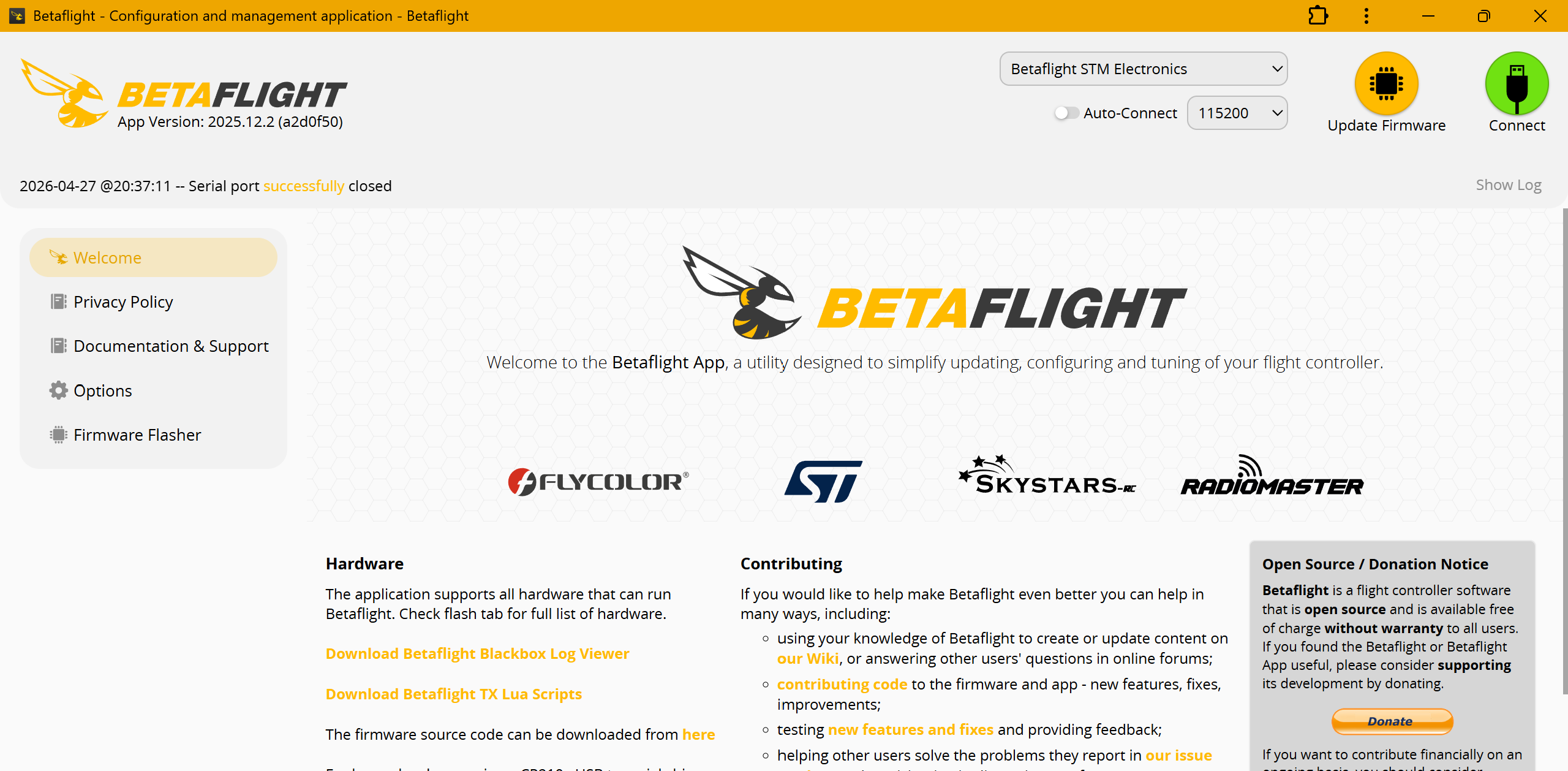
In the above screenshot you can see my HDZero AIO5 showing as "Betaflight STM Electronics" and I can click connect and get started. If your device is not showing in this list it is very likely either an issues with your USB micro cable (is it all the way in?) or a missing driver.
When you try to flash the firmware, Betaflight will automatically take a backup of your configuration. However, if you want to take a backup manually just to be extra sure, here's how to do it:
I strongly recommend you backup your working Betaflight configuration anytime you're planning on making major changes. You can do this by connecting to the device, going to the CLI tab, and typing: "diff all", then clicking save to file.
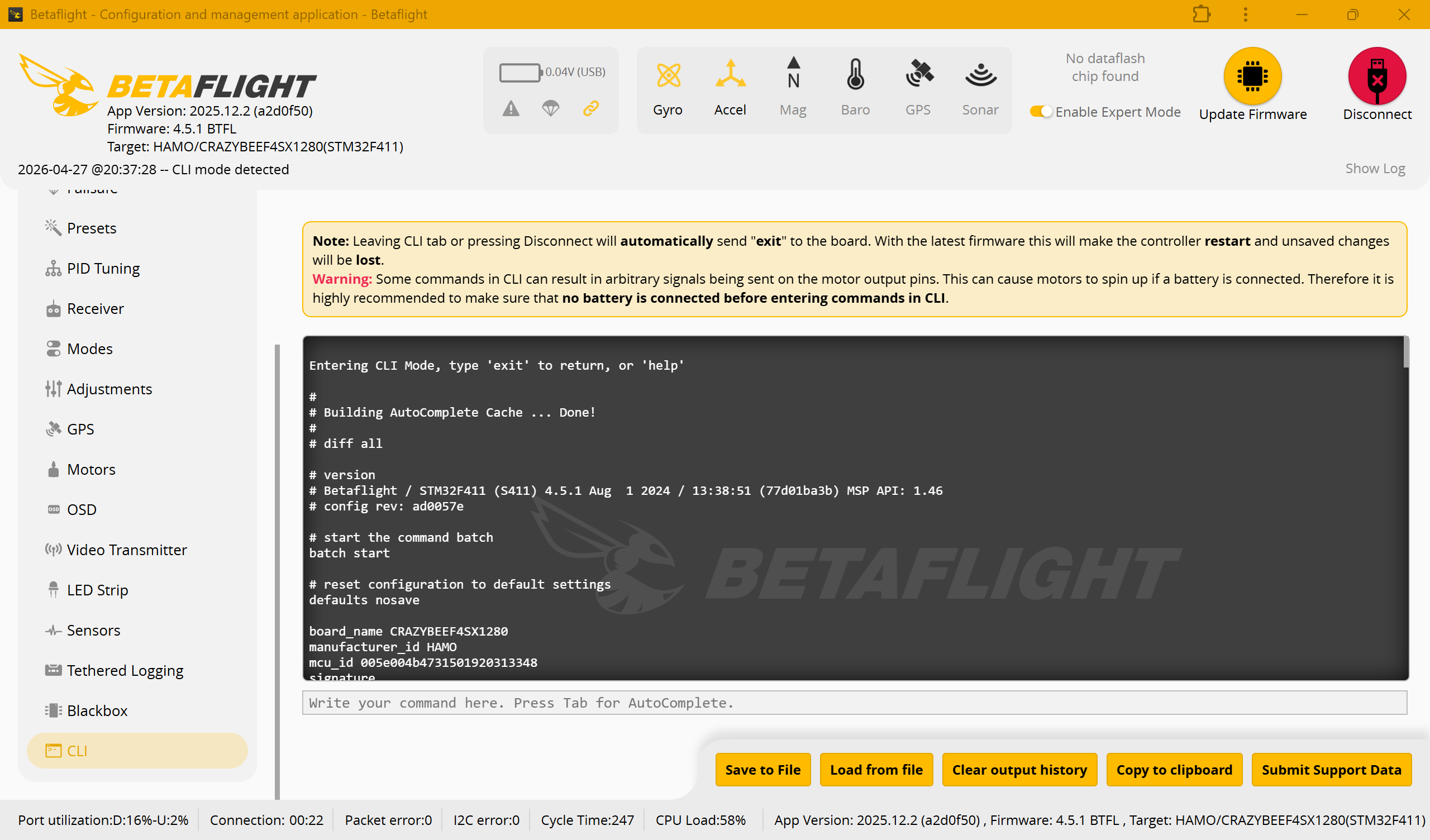
The update process will prompt you to take a backup, but personally I prefer to connect and grab one myself first. Once you're ready to run the update, disconnect from Betaflight and this time select "Update Firmware" from the initial screen rather than "Connect". This should take you to a screen like the below one. I recommend clicking "Detect" on the lefthand side. For the HDZero AIO5 this should automatically detect it as "CRAZYBEEF4SX1280". If detection fails, I would not proceed further until you have debugged why it is not correctly detected.
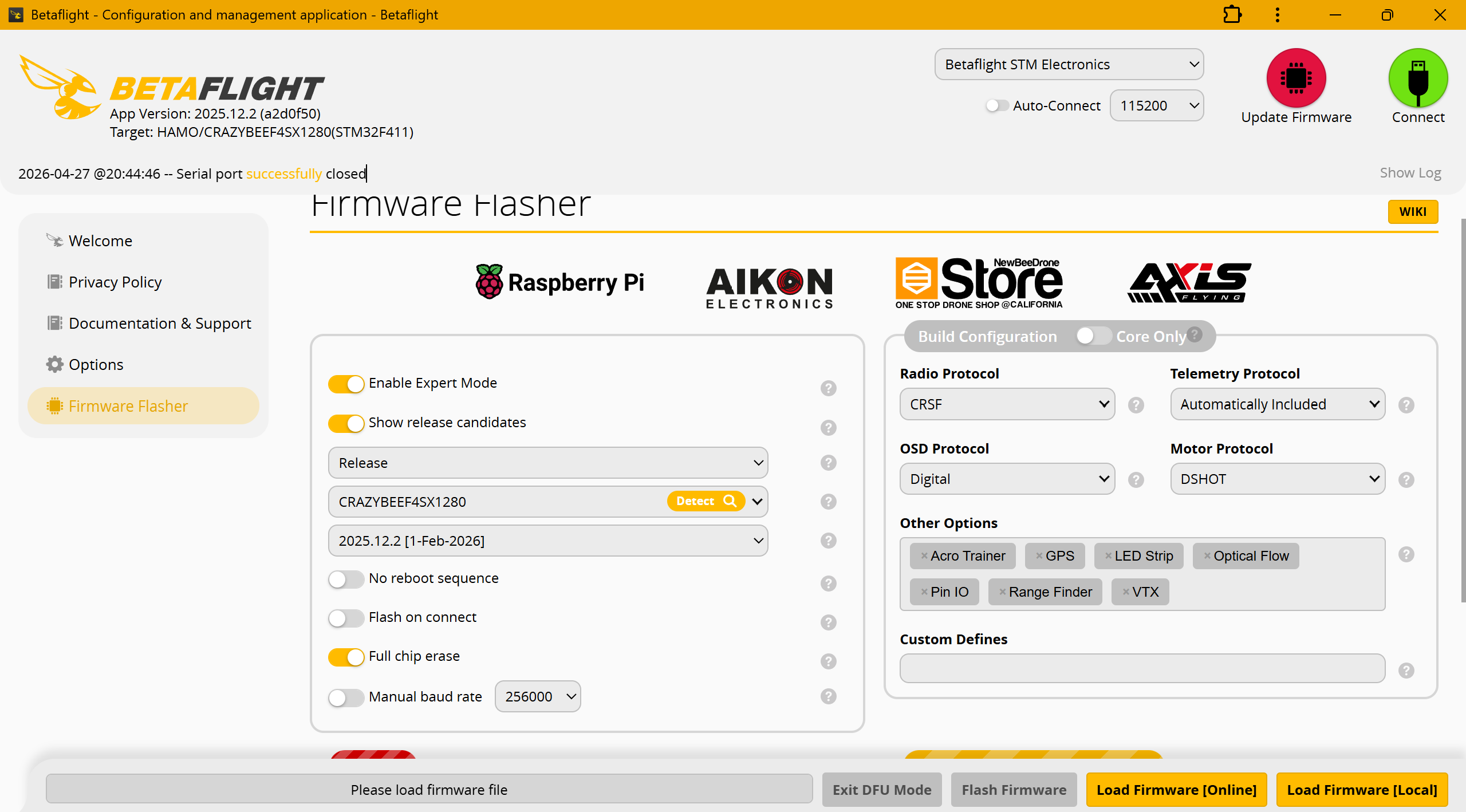
If detection succeeds, it's a good sign that things are going to work as Betaflight was able to correctly identify your flight controller. Next step is to select "Load Firmware [Local]" and provide the file from Ryan: "betaflight_2026.6.0-alpha_STM32F411_CRAZYBEEF4SX1280-ELRS4.0.hex". Betaflight will then reboot the device into DFU mode and enable the "Flash Firmware" button. You may need different drivers to connect in DFU mode - ImpulseRC Driver Fixer should install them for you though, but if you didn't use it earlier and things aren't working now, try that step again.
You'll see that by default Betaflight does a full chip erase for new firmware. However, as you took a backup of your configuration you can restore your settings. Connect to your device again, head back to the CLI tab and select "Load from File" - then provide it your backup file from earlier.
When you perform this step, several errors may show depending on your original firmware version. Most often this is simply caused by features being added, renamed, or removed in the new version. You can either review every error in the CLI and then find out what the command has been renamed to, or what appropriate configuration changes you should make for this version of Betaflight - or alternatively you can manually review each tab in Betaflight to ensure your config is how you like it. Once you've finished with the CLI type "save" to commit your backup (and any subsequent changes) to memory.
Even if you didn't spot any errors, it's a really good idea to check the major device configuration tabs to check everything looks correct. I'd review at least motors, modes, and CLI. Once you're happy, you can go to the Receiver tab to set your Binding Phrase. As shown:
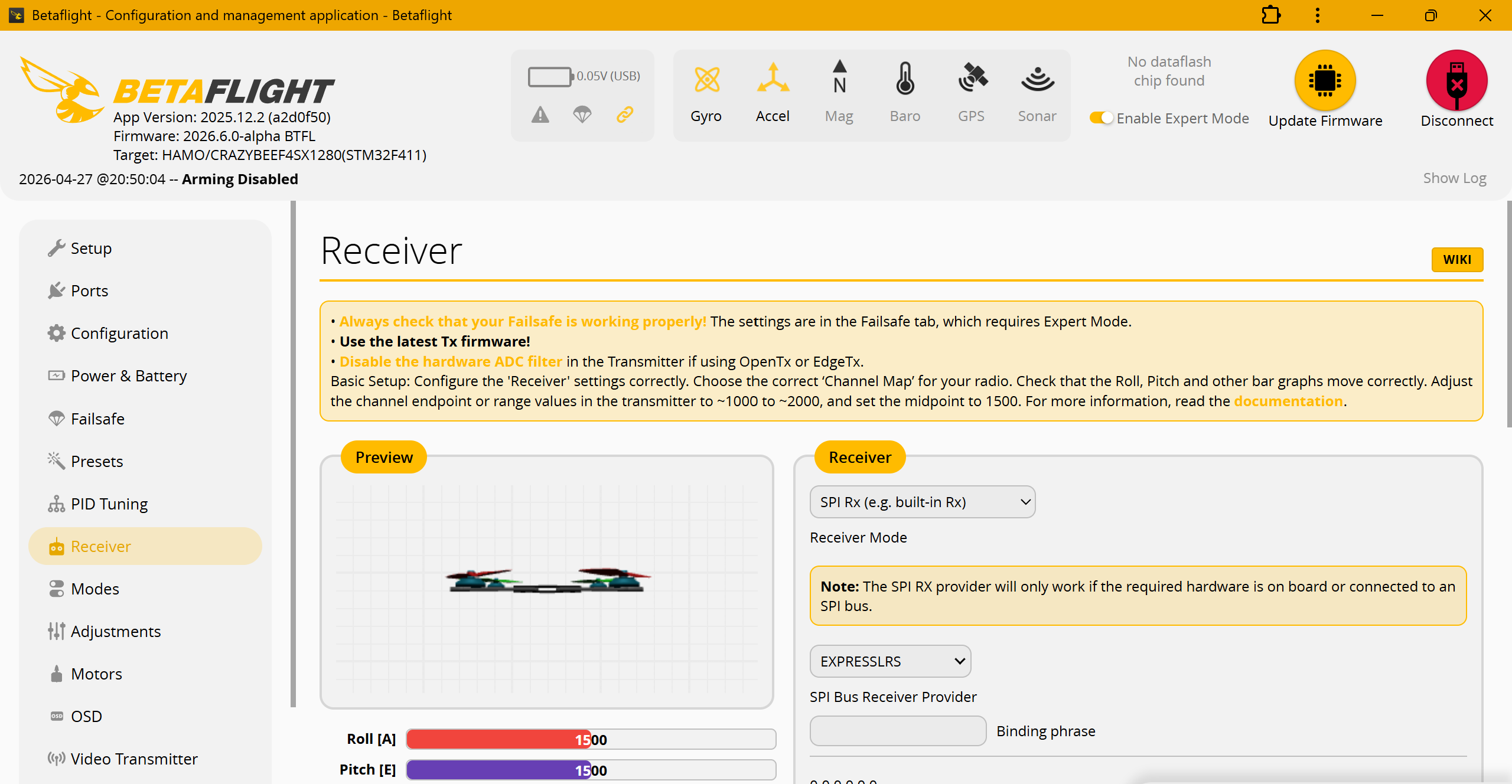
Set your Binding Phrase, save your changes - and power on your ELRS 4.0.0 transmitter. Give it a moment and then your transmitter should connect to your quad!
Note: Receiver don't bind? Double check your transmitter's packet rate - SPI receivers don't support all rates such as F1000. Try setting it to 250 and seeing if it will bind. Also, double check that your Binding Phrase saved correctly, you might have mistyped it or forgotten to hit save. Lastly, double check that your transmitter is setup for ISM not LBT, otherwise it won't bind.